Listing image set
One product photo. The whole listing gallery.
A product page needs more than one picture. Tick the shots — hero, ¾ angle, close-up, in use, what's in the box, back — add the qualities that should show, and get the full set in one batch.
Starts on Nano Banana 2 · 1:1
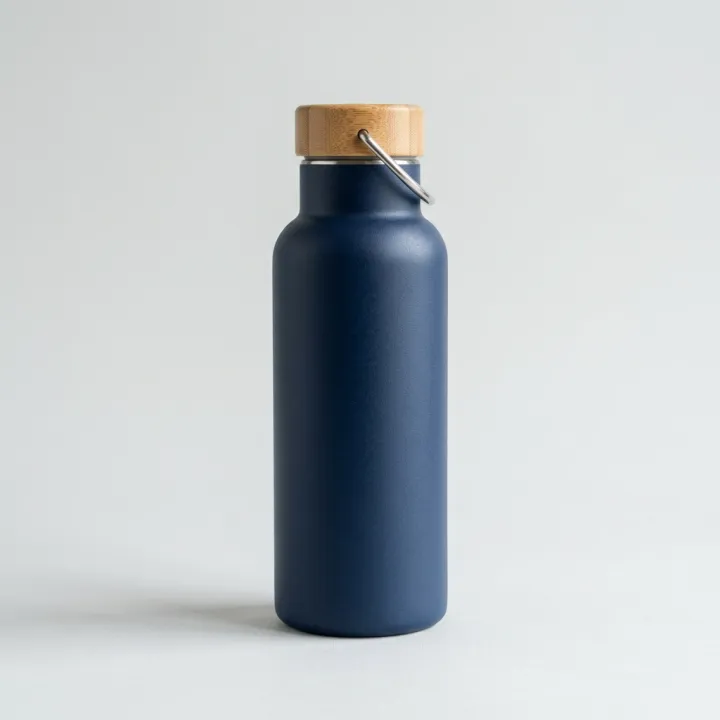 Your photo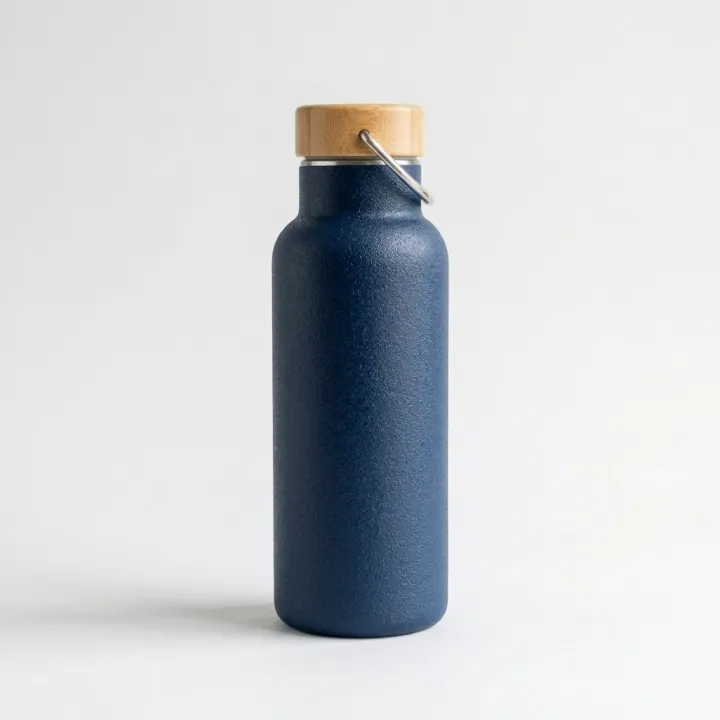
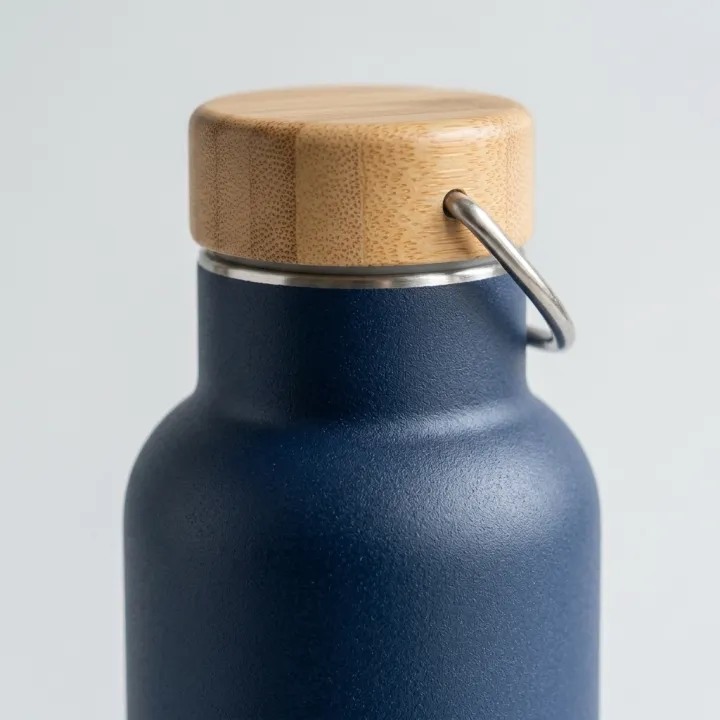
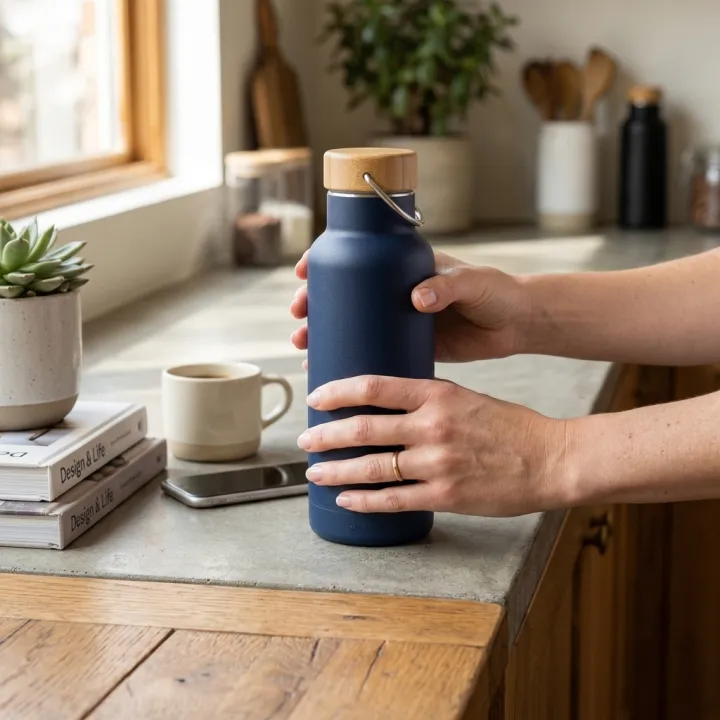
Rendered with this exact recipe.
These images came out of this template, with the prompts below each one. Your batch uses the same recipe with your photos and your words.
- 01 · Hero
Product listing photo of the exact product from the reference image (insulated steel bottle), hero shot, front-facing on a clean light background, studio lighting. Make these qualities visible: powder-coat grip; bamboo lid. Keep the product identical to the reference: same shape, colors, materials, label and proportions. No text overlays, no watermark.
- 02 · Close-up
Product listing photo of the exact product from the reference image (insulated steel bottle), macro close-up of the materials, texture and finish. Make these qualities visible: powder-coat grip; bamboo lid. Keep the product identical to the reference: same shape, colors, materials, label and proportions. No text overlays, no watermark.
- 03 · In use
Product listing photo of the exact product from the reference image (insulated steel bottle), in use in a realistic setting, showing its size next to hands and everyday objects. Make these qualities visible: powder-coat grip; bamboo lid. Keep the product identical to the reference: same shape, colors, materials, label and proportions. No text overlays, no watermark.
A few fields, not a prompt.
Product photo
One result per photo · A clear photo works best. Several photos = one set each.
Product nameoptional
e.g. insulated steel bottle
What should showoptional
Only things that are true. One per line.
powder-coat grip · bamboo lid
Shots
Hero¾ angleClose-upIn useWhat's in the boxBack
Recipe in, batch out.
- Step 01
Fill in the template
Add your photos, type your list, tick the options. Every option you tick multiplies into its own image.
- Step 02
Check the plan
The template writes one prompt per image and shows the whole list with the credit cost. Edit or remove any line.
- Step 03
Render and download
The batch runs in one go. Keep the results in your library or download them all in one ZIP.
Listing image set — FAQ
Q1What should I write under “What should show”?
Only things that are true about the product, one per line — a grip texture, a lid material, a pocket. The template asks the model to make them visible; it won't invent features you didn't list.
Q2Can I make sets for several products?
Yes. Add several product photos and each one gets its own full set of the shots you ticked.
Q3Can the images include text or badges?
No, this recipe keeps the images free of text overlays so you can add your own labels in your listing tool.
More templates
All templates →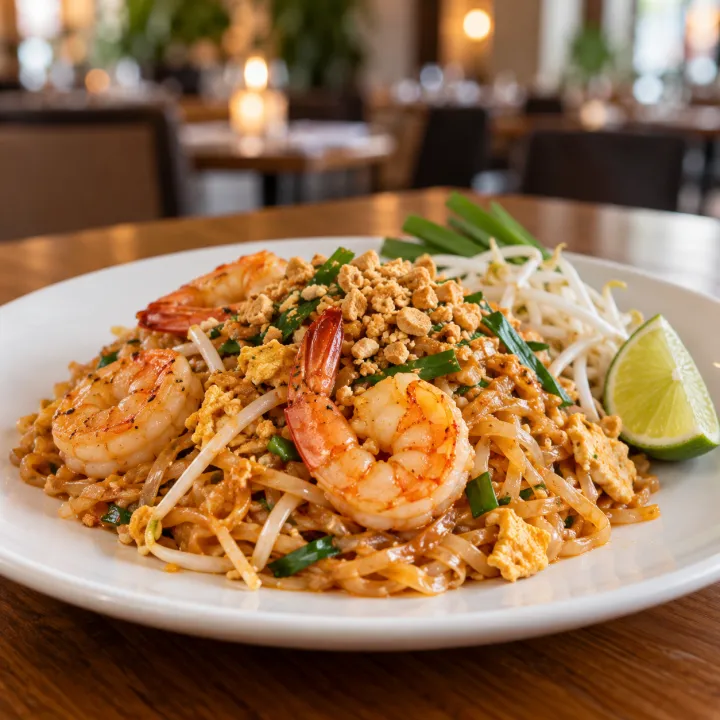
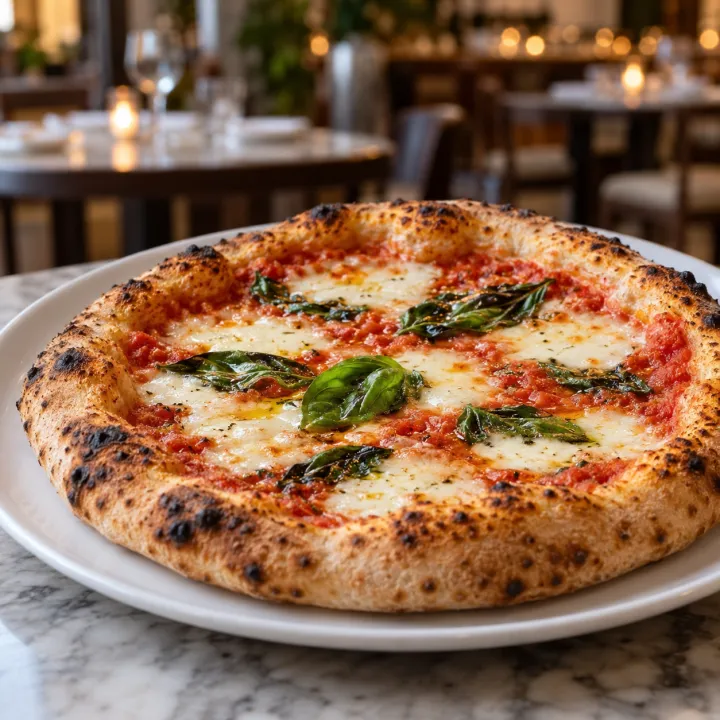
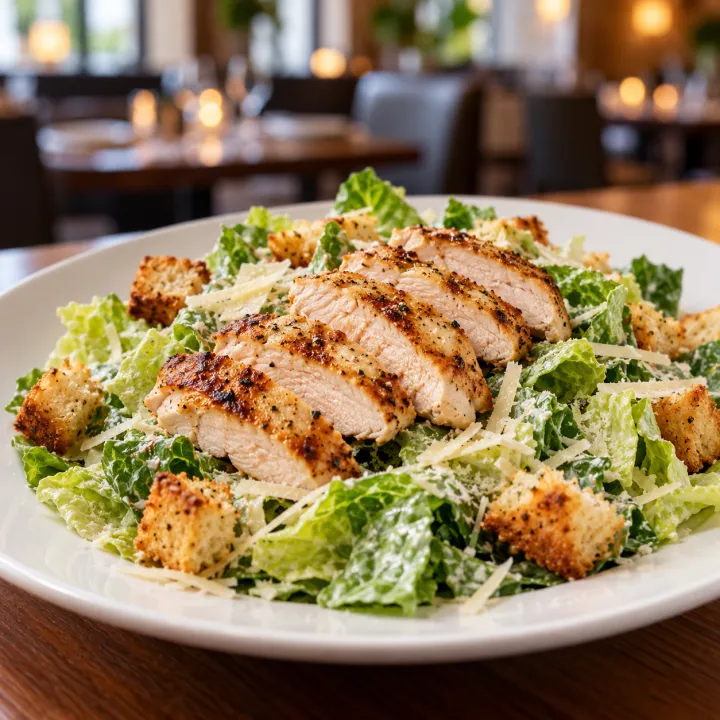
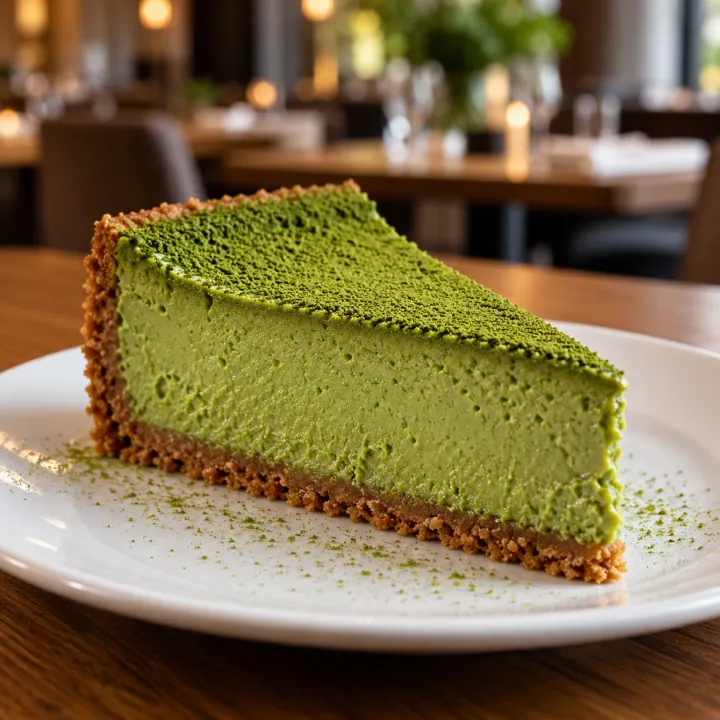 ProductsMenu photosA list of dishes in, a matching photo for every item on the menu out.See the template →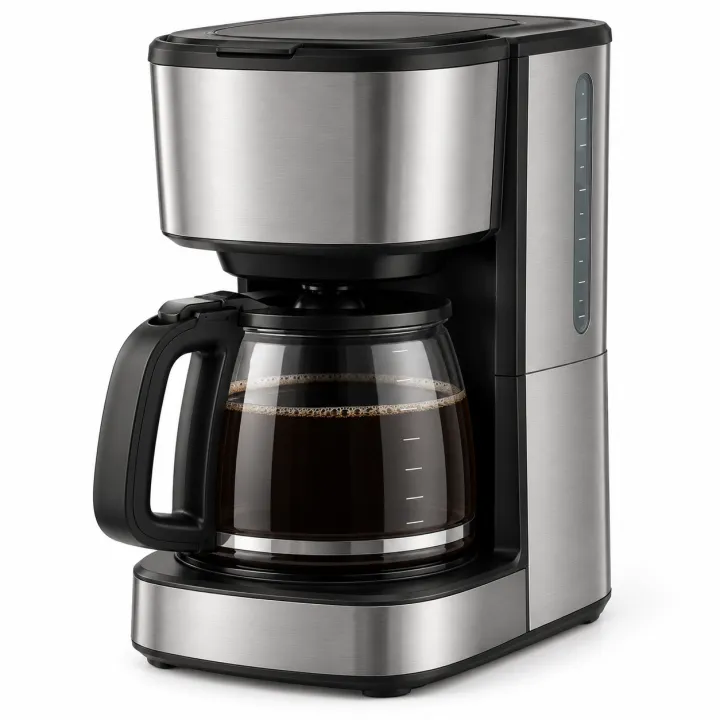
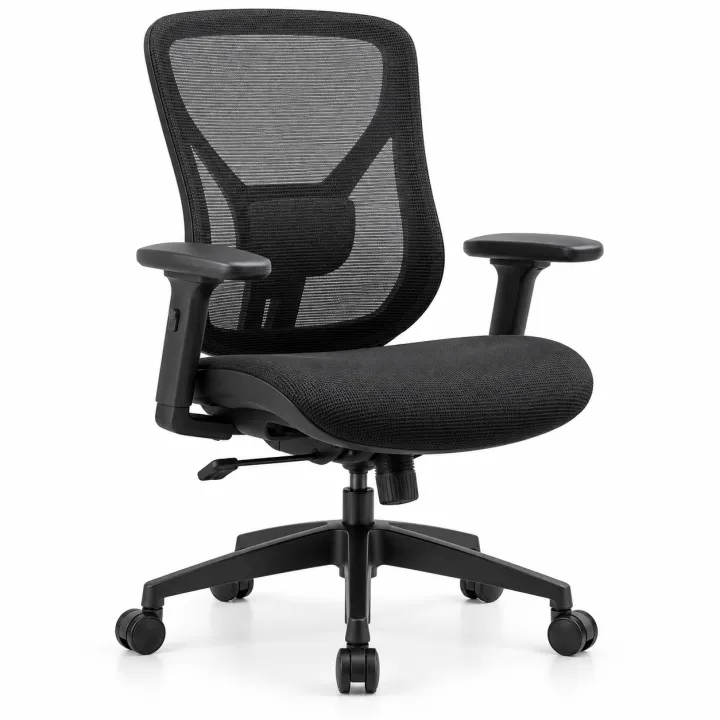
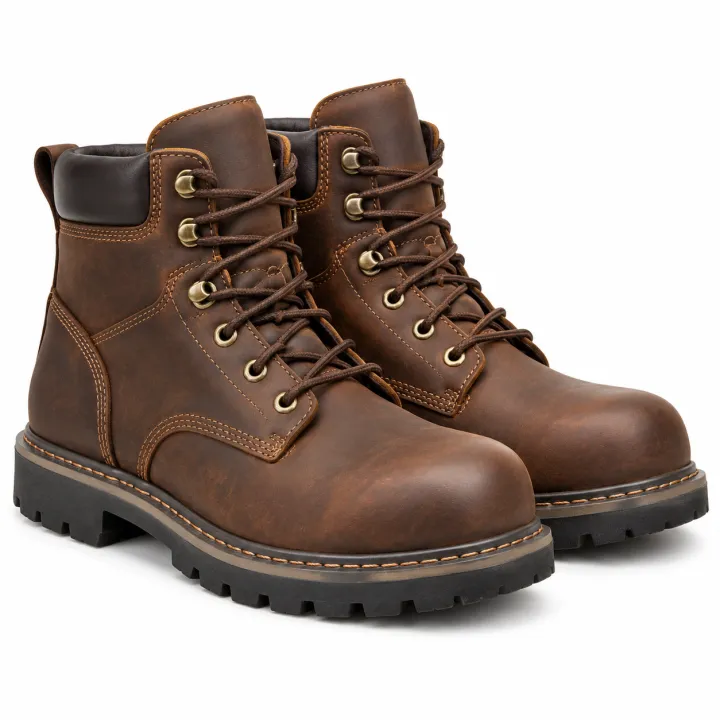
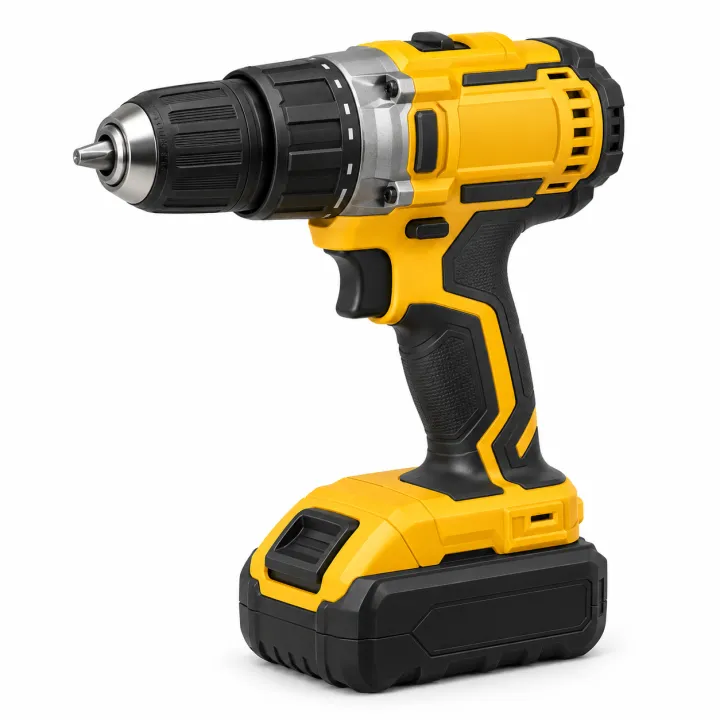 ProductsCatalog photos from product namesA list of product names or SKUs in, a clean catalog photo for each one out.See the template →
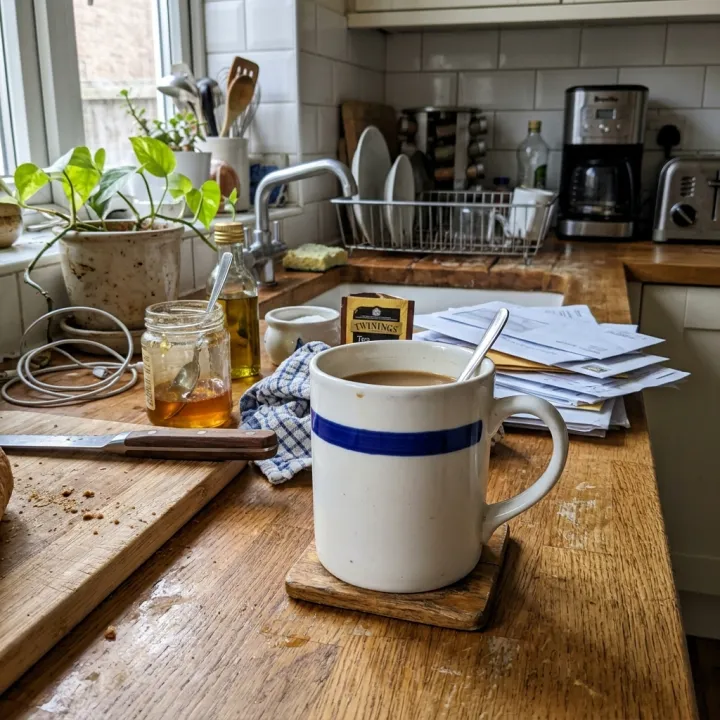 Your photo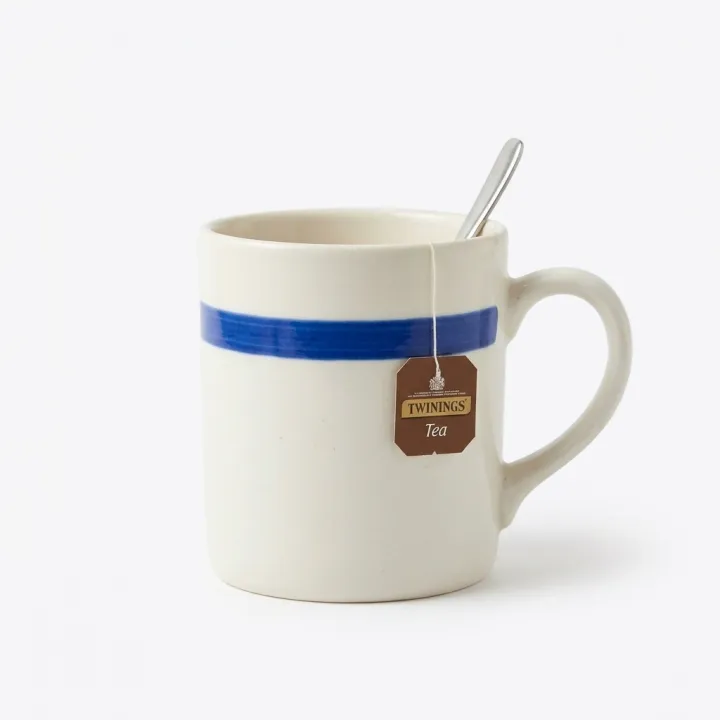
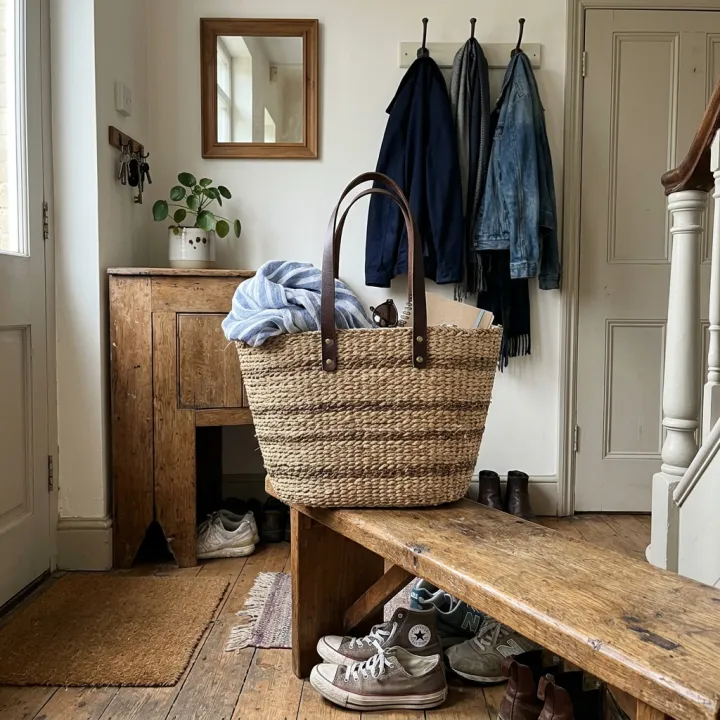 Your photo
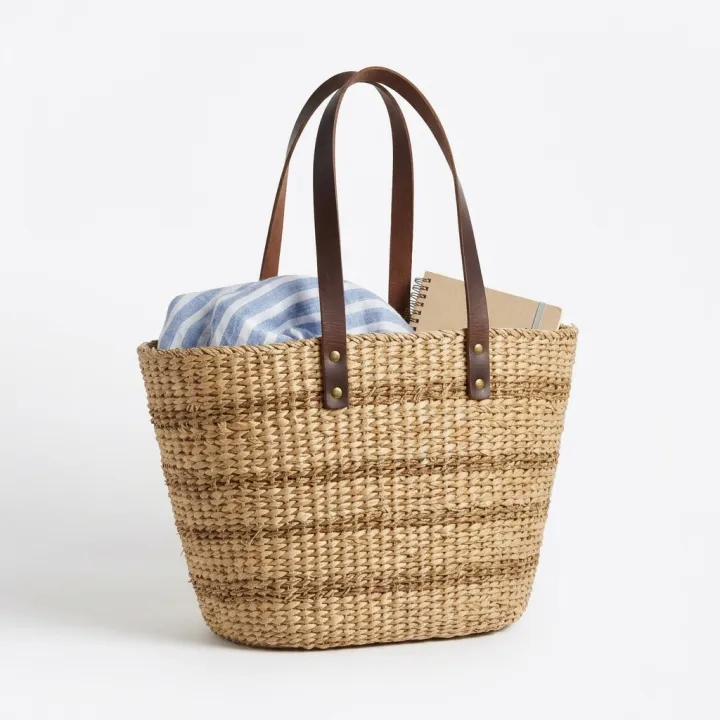 ProductsWhite background packshotsPhone photos in, clean marketplace main images out. One result per photo.See the template →
 Your photo

 ProductsProduct in real roomsPut each product into the rooms you pick. Products × scenes.See the template →
Your set is a few fields away.
Pick the template, fill it in, check the plan, render. 50 free credits to start — no card.
Use this template