대본으로 영상 장면 만들기
대본을 장면별로. 캐릭터는 끝까지 그대로.
장면을 한 줄에 하나씩 붙여 넣고 스타일(2D 카툰, 스틱맨, 다큐멘터리 사진, 애니메, 수채화)을 고른 뒤, 캐릭터 시트가 있으면 추가하세요. 모든 줄이 시리즈 전체와 어울리는 16:9 컷이 돼요.
기본 모델 Nano Banana 2 · 16:9
 내 사진
내 사진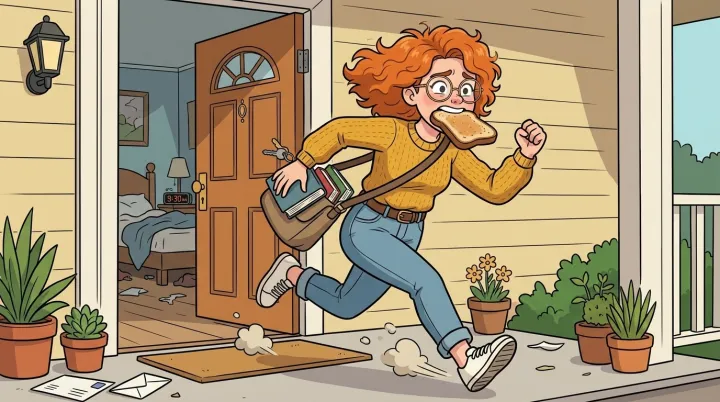
바로 이 레시피로 렌더링했어요.
이 이미지들은 이 템플릿으로 만든 것이고, 각 이미지 아래에 프롬프트가 있어요. 내 배치도 같은 레시피에 내 사진과 내 문구를 넣어 만들어져요.
- 01 · Mia oversleeps and races out the door with toast in her mouth
Scene illustration for a video: Mia oversleeps and races out the door with toast in her mouth. Style: clean colorful 2D cartoon illustration, bold dark outlines, flat shading. Characters: the characters exactly as in the reference images (same faces, proportions, colors and outfits). Keep the same style and characters as every other scene in the series. One single frame, no panels, no captions, no text, no watermark.
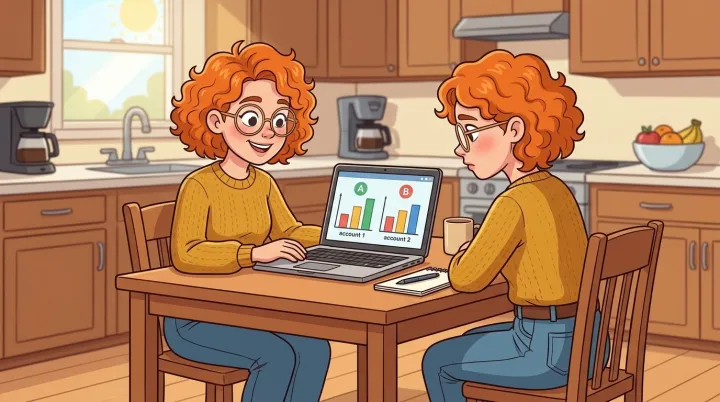
- 02 · Mia compares two savings accounts on her laptop at the kitchen table
Scene illustration for a video: Mia compares two savings accounts on her laptop at the kitchen table. Style: clean colorful 2D cartoon illustration, bold dark outlines, flat shading. Characters: the characters exactly as in the reference images (same faces, proportions, colors and outfits). Keep the same style and characters as every other scene in the series. One single frame, no panels, no captions, no text, no watermark.
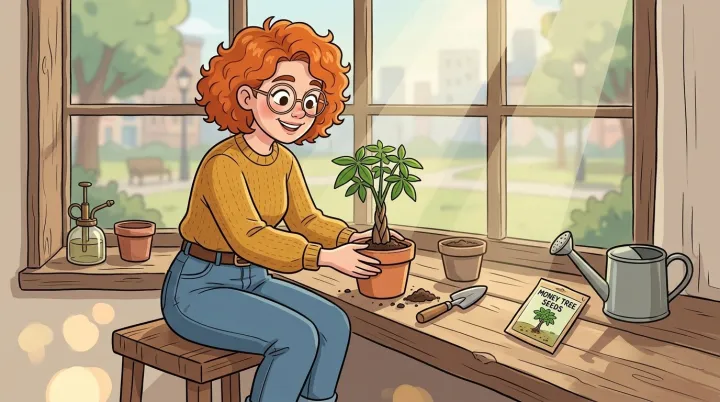
- 03 · Mia plants a tiny money tree in a pot on her windowsill
Scene illustration for a video: Mia plants a tiny money tree in a pot on her windowsill. Style: clean colorful 2D cartoon illustration, bold dark outlines, flat shading. Characters: the characters exactly as in the reference images (same faces, proportions, colors and outfits). Keep the same style and characters as every other scene in the series. One single frame, no panels, no captions, no text, no watermark.
필요한 건 항목 몇 개, 프롬프트가 아니에요.
장면
한 줄에 한 장면씩, 순서대로 적으세요.
미아가 늦잠을 자고 허겁지겁 집을 나선다 · 미아가 예금 계좌 두 개를 비교한다 · 미아가 작은 돈나무를 심는다
스타일선택
2D 카툰스틱맨다큐멘터리 사진애니메수채화캐릭터 참고 이미지선택
모든 사진을 각 이미지에 사용 · 선택: 맞추고 싶은 캐릭터 시트나 컷. 모든 장면에 사용돼요.
고정 등장인물선택
선택. 한 줄에 한 명.
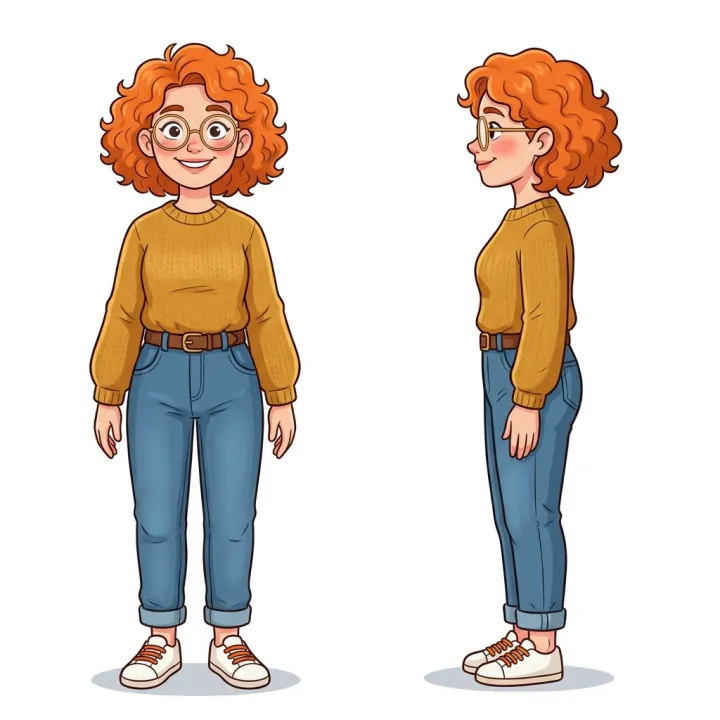
미아: 곱슬곱슬한 주황색 단발, 동그란 안경, 머스터드색 스웨터
세계관과 시대선택
예: 서기 100년의 작은 로마 마을
레시피를 넣으면 배치가 나와요.
- Step 01
템플릿 채우기
사진을 넣고, 리스트를 입력하고, 옵션을 체크하세요. 체크한 옵션마다 각각의 이미지로 곱해져요.
- Step 02
계획 확인하기
템플릿이 이미지마다 프롬프트를 하나씩 쓰고, 전체 목록을 크레딧 비용과 함께 보여 줘요. 어떤 줄이든 고치거나 지울 수 있어요.
- Step 03
렌더링하고 다운로드
배치는 한 번에 실행돼요. 결과는 라이브러리에 보관하거나 ZIP 하나로 전부 다운로드하세요.
대본으로 영상 장면 만들기 — FAQ
Q1모든 장면에서 같은 캐릭터를 유지하려면 어떻게 하나요?
‘캐릭터 참고 이미지’에 캐릭터 시트나 컷 몇 장을 올리면 모든 장면에 첨부돼요. 반복해서 나오는 캐릭터는 ‘고정 등장인물’에 한 번만 적으면 돼요. 스타일 지정도 모든 프롬프트에 함께 들어가요.
Q2쇼츠나 틱톡용 세로 컷도 만들 수 있나요?
네. 템플릿은 16:9로 시작해요. 렌더링 전에 설정에서 비율을, 예를 들어 9:16으로 바꾸세요.
Q3긴 대본을 붙여 넣어도 되나요?
장면을 한 줄에 하나씩 붙여 넣으세요. 목록이 길어도 괜찮아요. 렌더링 전에 플랜에서 모든 장면과 총비용을 확인할 수 있고, 어떤 줄이든 삭제하거나 다시 쓸 수 있어요.
 내 사진
내 사진
 내 사진
내 사진